
What needs to be completed in Golf Genius before syncing in Whoosh?
- Before syncing with Whoosh, it is advised to audit the event and master rosters
- Remove any players who are no longer members and will not be participating in golf events.
- Confirm each player has a first and last name on the roster
- Double-check the spelling of names
- Each member should have their own unique email address
- If spouses share an email in Golf Genius they will not sync correctly into Whoosh
- Next, finalize pairings.
- Set course/tee
- Set Shotgun or Tee Times
- Save the pairings
Where do the Golf Genius events live in Whoosh?
Events are found by clicking on the Golf Genius icon on the agenda for the date of the event.
How do I sync an event?
- Make sure all adjustments in Golf Genius have been made before starting the syncing process within Whoosh.
- If a sync has failed and you manually enter bookings on the tee sheet, the sync will no longer populate the event on your tee sheet.
- Click on the Golf Genius Icon on the top of the agenda for the date of the event.
- Choose the Golf Genius event from the modal
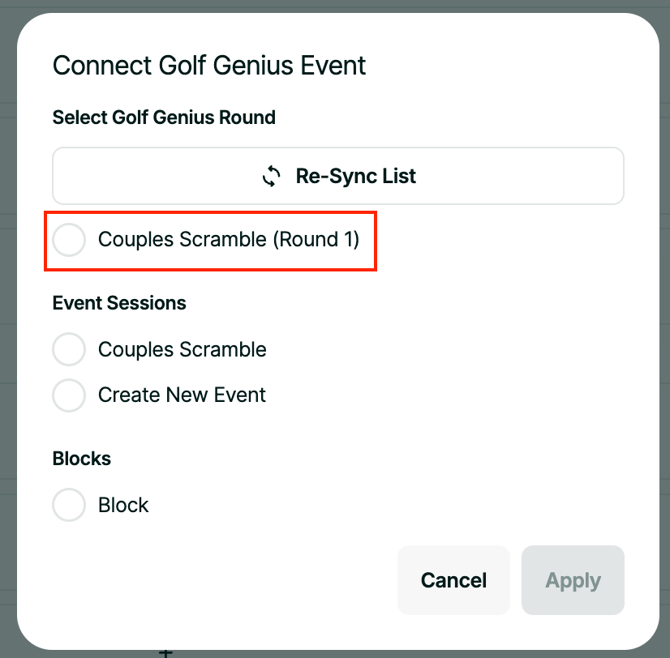
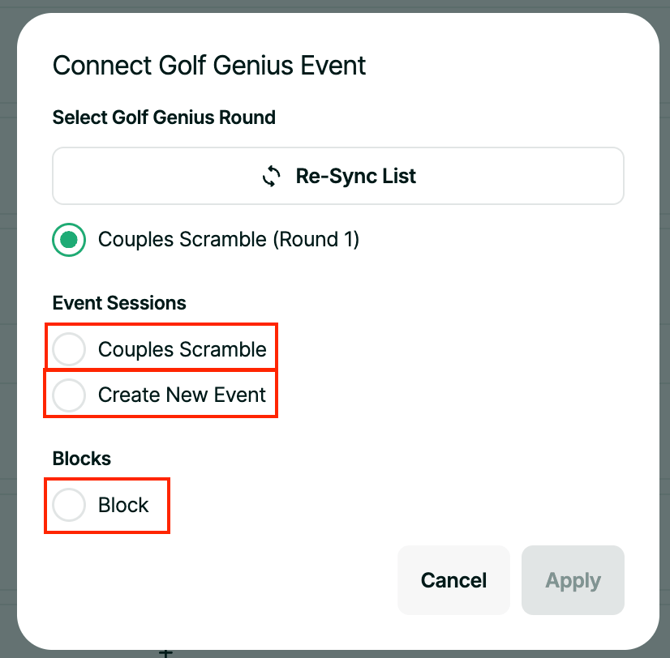
- Connect it to either a Whoosh Event, create a new event, or an existing block.
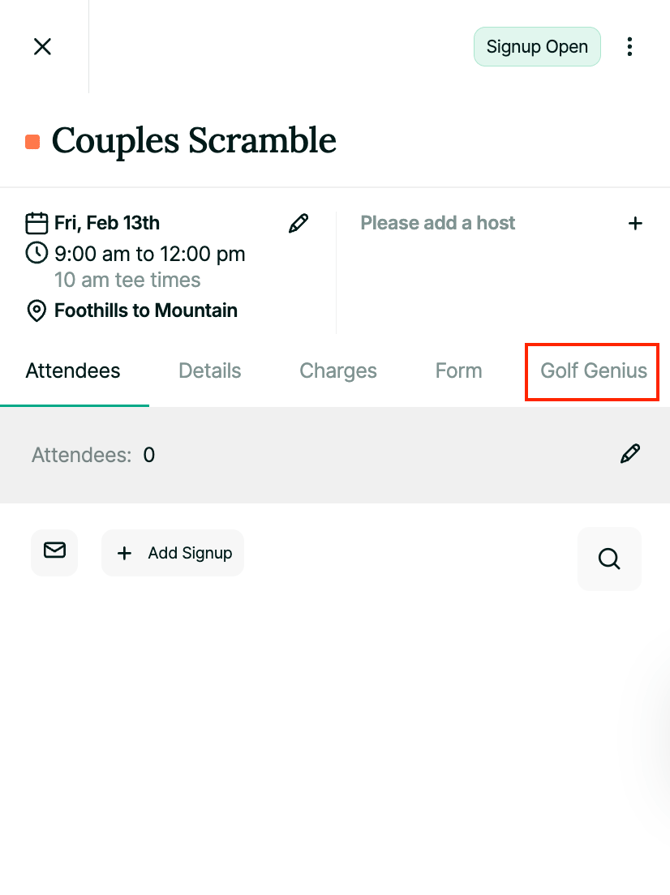
- After connecting the event, navigate to the Golf Genius tab in the connected event
- Click the green “Sync Pairings” button
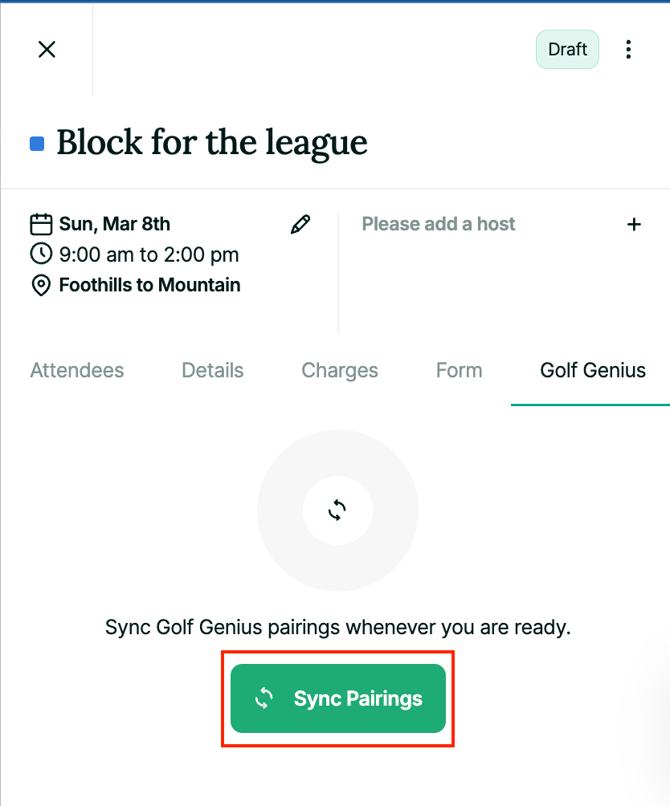
- Errors will display as information banners below the sync button
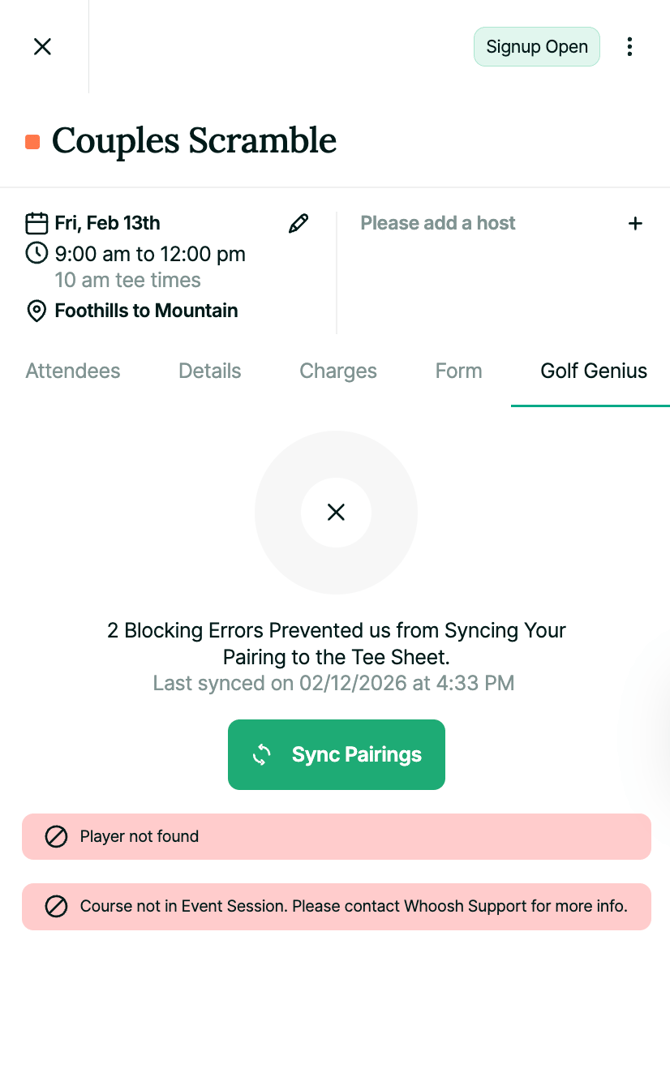
- If there is a player error, click on the “Full Roster” at the bottom of the screen
- All player errors will be visible at the top of the roster
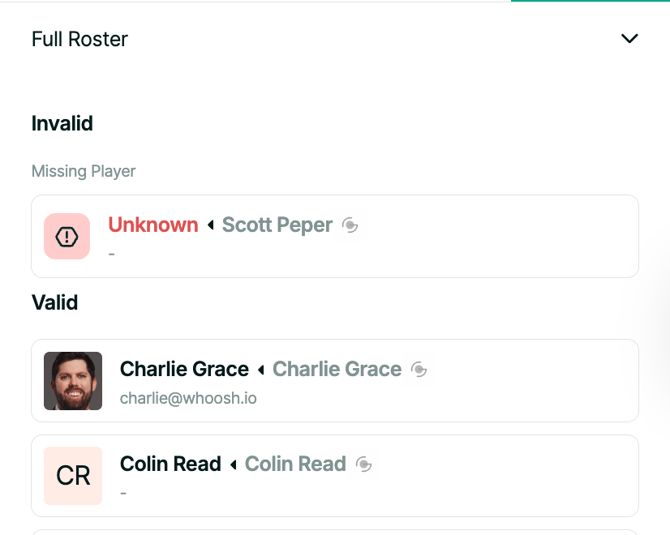
- To fix the error, click on the players name and match them to a member or create new guest
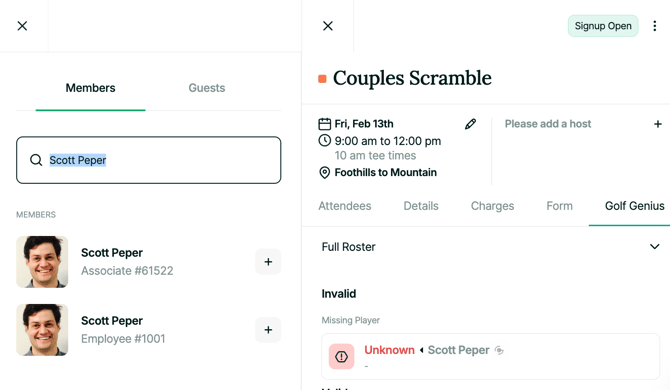
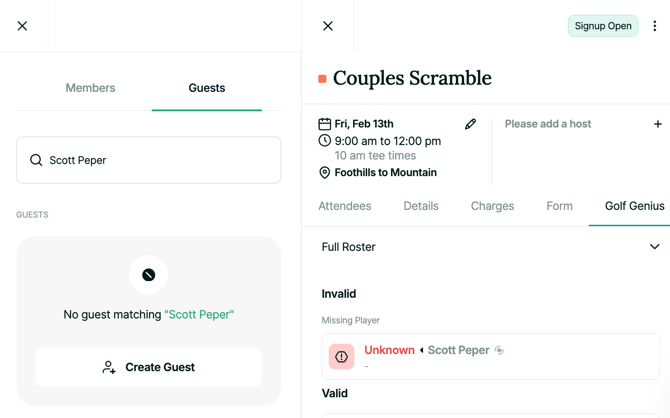
- Once all of the players have been matched click on “Full Roster” to close the roster
- Re-sync the pairings by click on the green “Sync Pairings”
- If there are no errors, the pairings from Golf Genius will be added to the agenda
How do I sync a league event? (Whoosh Event users)
- Make sure all adjustments in Golf Genius have been made before starting the syncing process within Whoosh.
- If a sync has failed and you manually enter bookings on the tee sheet, the sync will no longer populate the event on your tee sheet.
- Within Whoosh, create a recurring event for each day of the league
- Click on the Golf Genius Icon on the top of the agenda for the date of the event.
- Choose the Golf Genius event from the modal
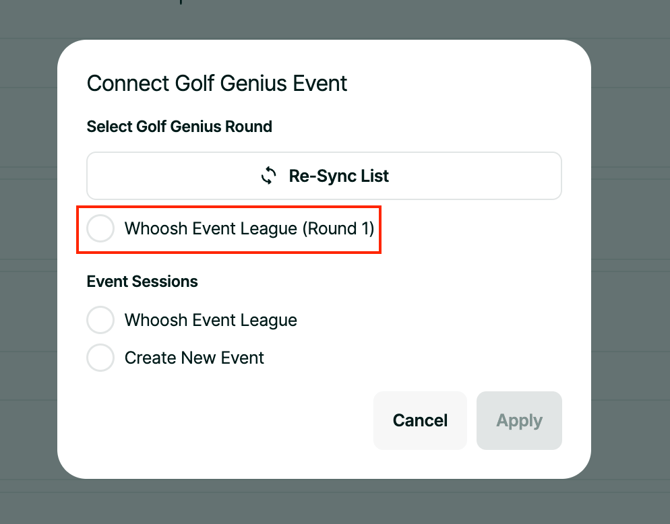
- Then select the corresponding Whoosh event session
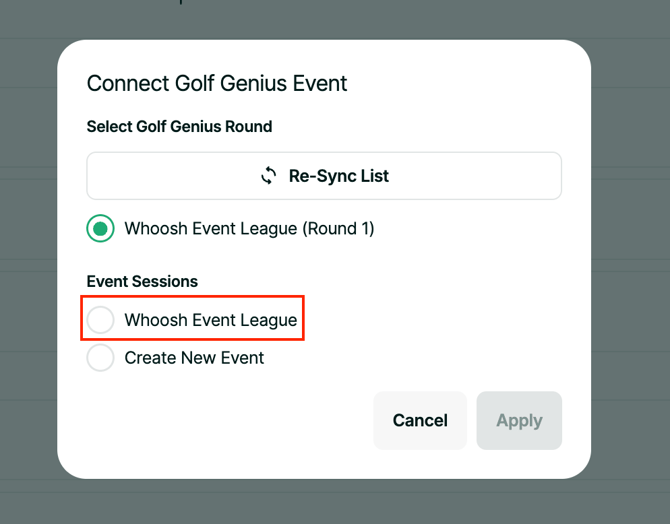
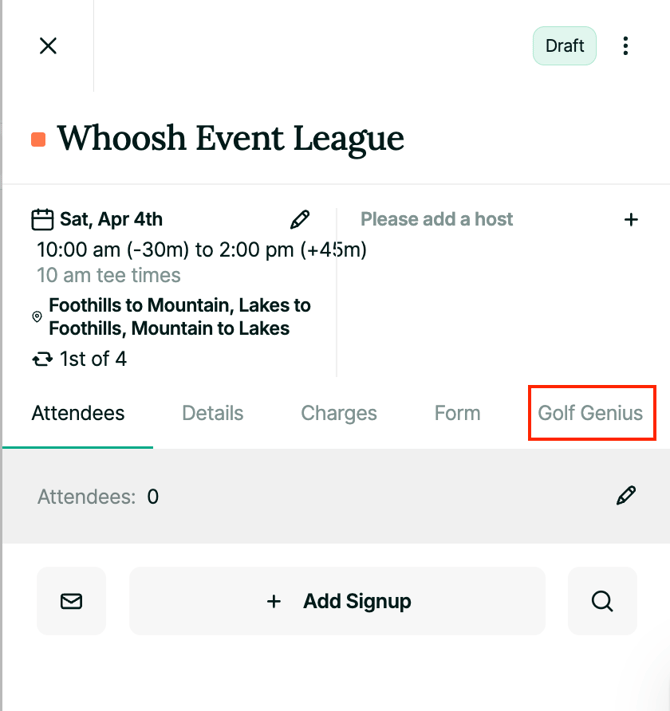
- After connecting the event, navigate to the Golf Genius tab in the connected event
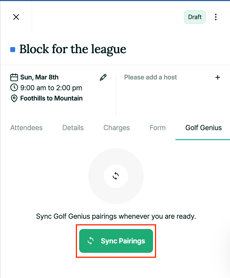
- Click the green “Sync Pairings” button
- Errors will display as information banners below the sync button
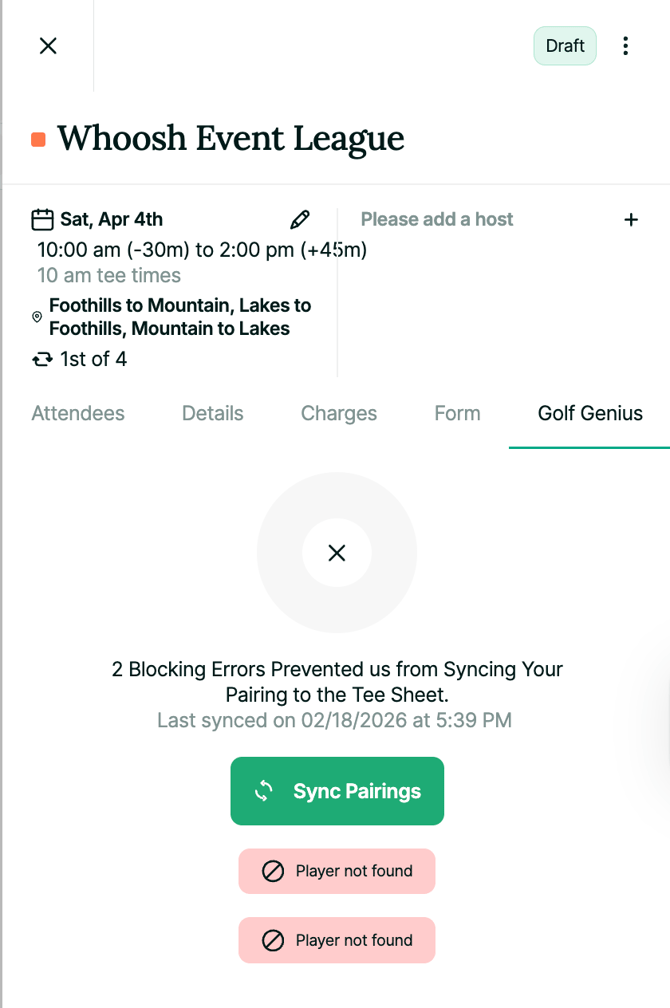
- If there is a player error, click on the “Full Roster” at the bottom of the screen
- All player errors will be visible at the top of the roster
- To fix the error, click on the player's name and match them to a member or create a new guest
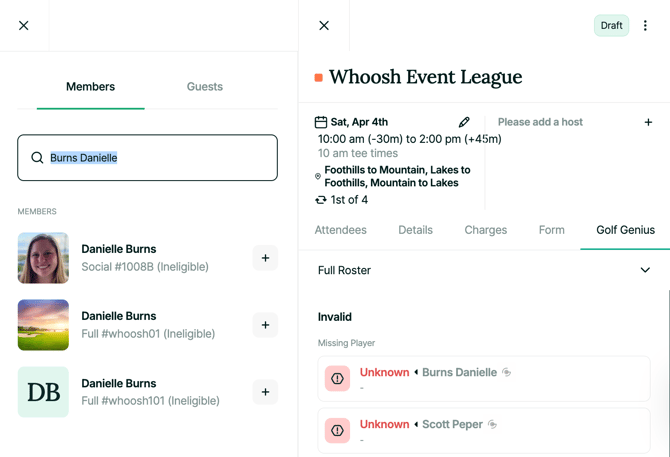
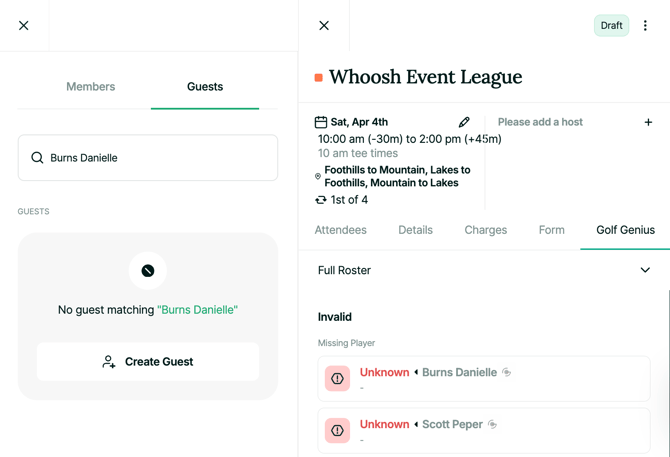
- Once all of the players have been matched, click on “Full Roster” to close the roster
- Re-sync the pairings by click on the green “Sync Pairings”
- If there are no errors, the pairings from Golf Genius will be added to the agenda
- Follow the same steps to sync the remaining league pairings
How do I sync an event to a block?
- Within Whoosh, create blocks for the day of the event to prevent players from booking those times
- Make sure all adjustments in Golf Genius have been made before starting the syncing process within Whoosh.
- If a sync has failed and you manually enter bookings on the tee sheet, the sync will no longer populate the event on your tee sheet.
- Click on the Golf Genius Icon on the top of the agenda for the date of the event.
- Choose the Golf Genius event from the modal, then select the corresponding Whoosh event session
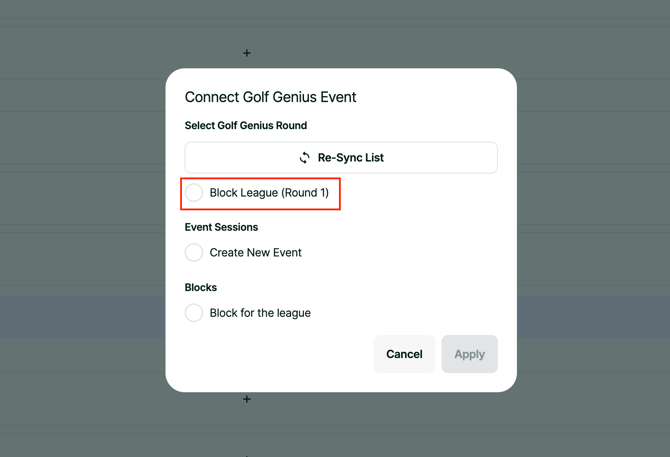
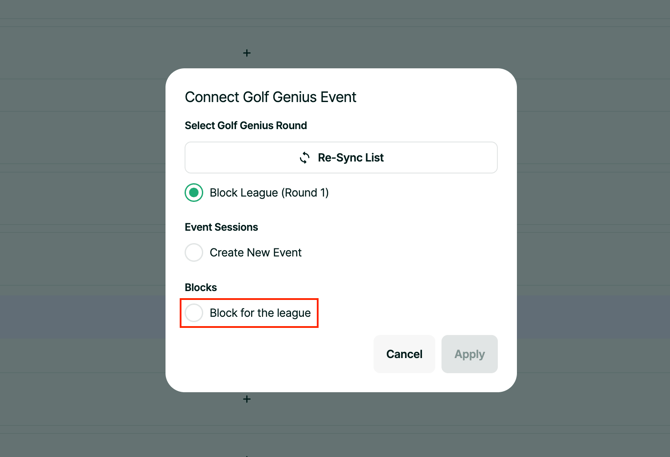
- After connecting the event, confirm the name and color for the event and click “Next”.
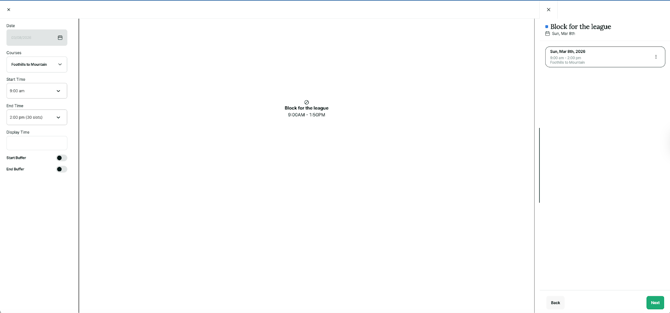
- Confirm that the earliest and latest time is correct and select next
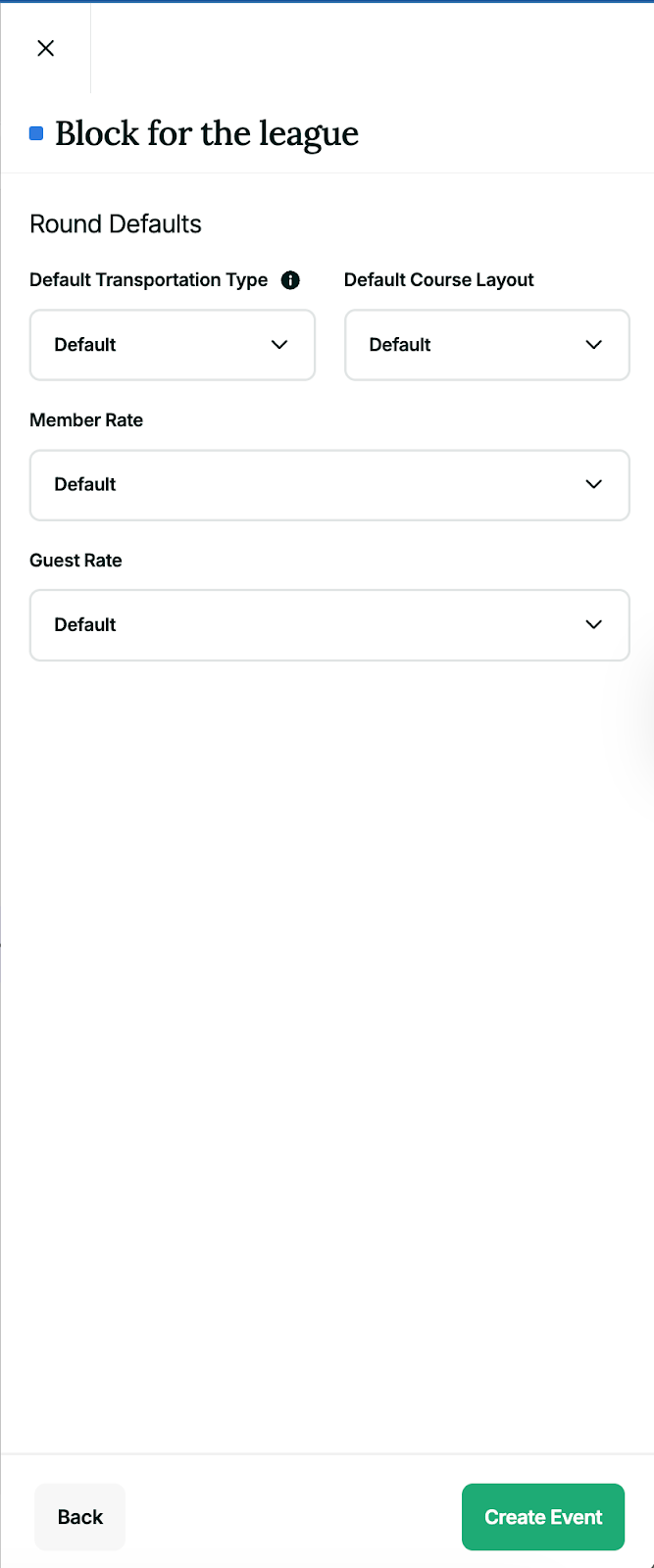
- Select the member rate, guest rate, transportation type, and course layout to assign to all the players in the event
- After connecting the event to the block, navigate to the Golf Genius tab in the connected event
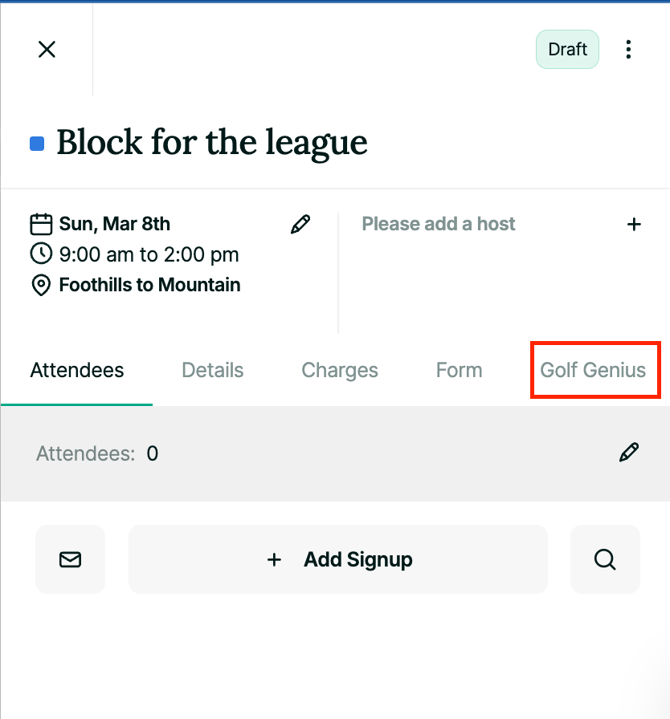
- Click the green “Sync Pairings” button
- Errors will display as information banners below the sync button. If there is a player error, click on the “Full Roster” at the bottom of the screen.
- All player errors will be visible at the top of the roster
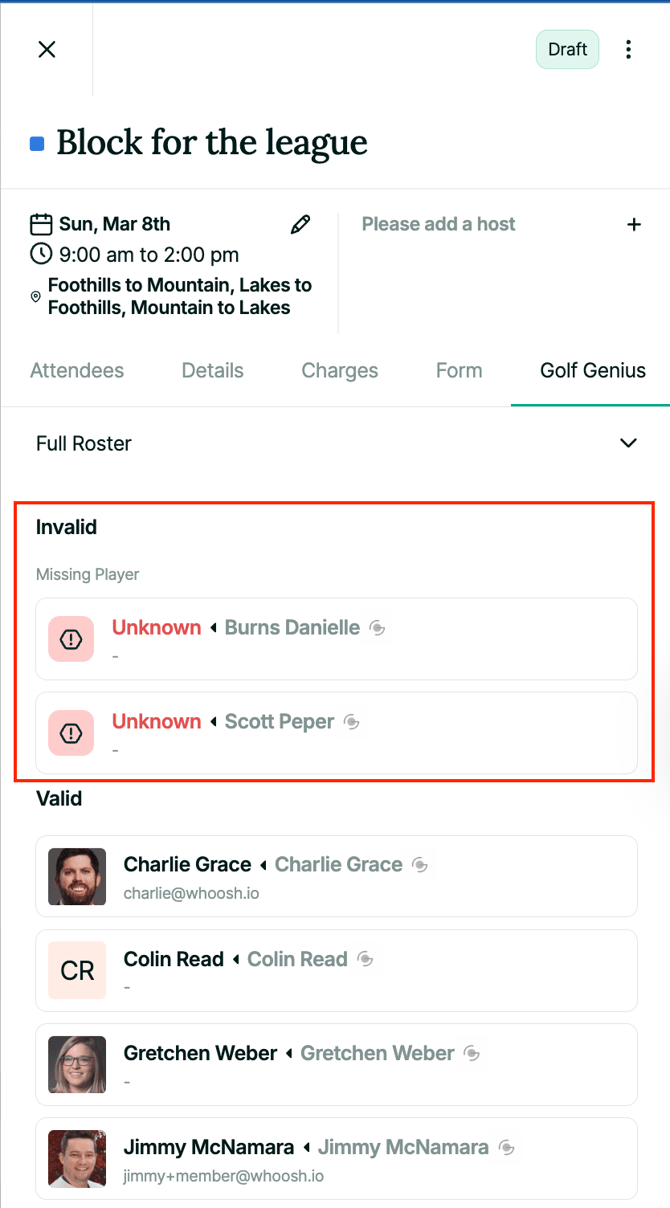
- To fix the error, click on the player's name and match them to a member or create a new guest
- All player errors will be visible at the top of the roster
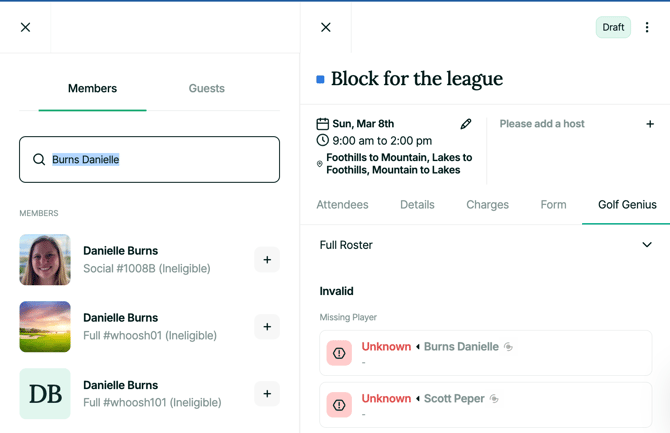
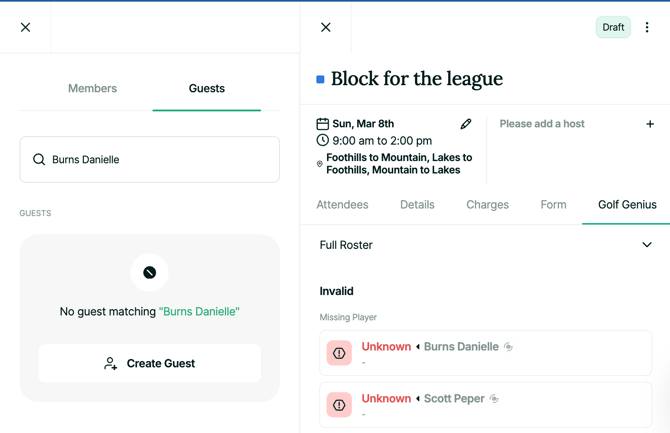
- Once all of the players have been matched, click on “Full Roster” to close the roster
- Re-sync the pairings by click on the green “Sync Pairings”
- If there are no errors, the pairings from Golf Genius will be added to the agenda
- Follow the same steps to sync the remaining league pairings
Why isn't my event syncing to the tee sheet?
- Confirm pairings are set in GG.
- Assign all players in the Whoosh event roster with a red error to either a member or a guest profile.
- Make sure there are no bookings on the tee sheet in the timeframe of the event.
- If all of the above are correct, resync the event within the Golf Genius tab of the event in Whoosh.
Why is my 9-hole or alternate course event not syncing?
- At this time, the sync from Golf Genius to Whoosh does not recognize a 9-hole course or “rotated” course layout. This also applies to any event that does not use your primary course(s) Golf Genius course.
- To prevent an issue when syncing a 9-hole event or rotated course, set up the pairings from the primary course for 18 holes, sync the event, and then change the pairings in Golf Genius to the correct layout.
- Contact the Whoosh Support Team at support@whoosh.io with the following information if an issue persists:
- A screenshot of the error message.
- The name of the event.
- If you are a multi-course facility, include which course the event is supposed to be on.
As a member booking club, how do I prevent members from booking times when there is an event?
- The best way to prevent other members from booking times reserved for an event is to create a tee sheet block on the tee sheet. Once the event pairings are finalized, the event can be connected to the block, and then the sync will add the pairings within the block.
- If you put placeholder bookings during the event, the event will not sync into the tee sheet.